The Best Parental Control Apps of 2019

- Monitors 24 social networks
- Covers unlimited devices

- Free version available
- Pornography blocker

- Manages screen time
- Filters inappropriate content

- Premium features under $15/year
- 30-day money-back guarantee

Last Updated: A day ago
We reviewed and updated this copy on November 18.
Our top pick has a singular mission—to help alert parents to danger before something bad happens. We like Bark because its focus is on prevention, not just control. Bark looks out for signs of potential problems like self-harm, depression, cyberbullying, online predators, and extreme situations like school shootings.
- Monitors 24 different apps and social networks
- Scans emails, texts, photos, and videos
- Delivers parental alerts along with recommendations from a child psychologist
About Parental Controls and Privacy: Spying vs. Filtering
All of the parental control filters we recommend are monitoring tools that let you set limits and keep an eye on your child’s online activity. There are other products out there that are designed for covert observation of your kid’s search habits, texting, etc. In a word—spying. This spyware lets you see what’s going on without your children knowing.
We recommend having an open line of communication with your child to help foster and encourage good online habits. If you use spyware (Mobile Spy, PhoneSheriff, WebWatcher, mSpy) to secretly track your child’s online activities, you’re missing the opportunity to give them real tools that will help them stay safe online for a lifetime.
Compare the Best Parental Control Apps
| Link |
| Lowest Annual Price |
| Devices Covered |
| Trial Period |
| Requirements |
| Read Review |
 |
 |
 |
 |
| Visit Site | Visit Site | Visit Site | Visit Site |
| $99.00 | $54.95 | $39.99 | $14.99 |
| Unlimited | Up to 15 | Up to 20 | Up to 500 |
| 7 days | 30 days | None | 30 days |
| iOS 10.9 or later Android 4.4 and up |
iOS 8.0 or later Android 4.0.3 and up |
iOS 11.0 or later Android 5.1 and up |
iOS 10.0 or later Android 4.4 and up |
| Read Review | Read Review | Read Review | Read Review |

Reviews: Best Parental Control Apps
Bark: Best for Social Media Monitoring
Bark is the simplest parental control app we tried out, but it delivers powerful protection. The company claims to have stopped 16 school shootings and identified 10,000 self-harm situations. It uses an impressive algorithm that watches for warning signs in social media posts, emails, text messages, and photos.
That level of oversight sounds invasive, but Bark alerts you only to posts or pics that it flags as potentially dangerous. This gives you the chance to stay tuned in to what’s going on with your child without making them hand over their phone for inspection. Because you get specialized alerts to specific warning signs, you can address each issue with your child.
We like that Bark encourages proactive parental engagement, not just overarching parental control. And the company uses child psychologists to provide parents with advice and recommendations about how to deal with any scary situations that come up.
At $99 per year, Bark is one of the most expensive parental control apps we’ve seen. But it does offer a free 7-day trial period, and you can use the app on an unlimited number of devices. Even though we think it steals the show when it comes to social media monitoring, Bark is missing a few features we expect from a parental control app, like screen time monitoring and a content filter.
“I was pretty surprised how quick I had [Bark] set up. I was expecting it to be more difficult, but the whole process was simple. It worked right away.”
—Wayne, Bark tester
Note: Bark doesn’t have an iOS app. If your family uses Apple devices, Bark works using a desktop app and remote backup of your child’s iPhone.
Pros
- Easy to use
- Free to try out for 7 days
- Able to identify risky behavior
- Full of advice to help parents and kids
- Equipped to alert you if it’s uninstalled
Cons
- Expensive
- Missing some typical parental control features
- Lacking an iOS mobile app
What Can You Do with the Bark App?
-
Social Media Monitoring
Keep tabs on 24 different apps and social networks, including Facebook, Instagram, Snapchat, and YouTube. -
Email Monitoring
Get alerts if concerning items are detected in your child’s email accounts. Bark monitors Gmail, Yahoo!, Outlook, AOL, Comcast, and iCloud email accounts. -
Text Monitoring
Know if worrisome messages show up in your kid’s text messages on their phone or tablet and instant messages on multiple platforms like Slack.
Qustodio: Best for Teens
Qustodio is one of the most comprehensive parental control apps available, and we like that you can choose between a free basic version or pay up to access extra features. You can try out all the premium features for a three-day period, which is nice but also the shortest trial period we’ve seen.
One of our favorite Qustodio features is the panic button. Kids can access the panic button through the Qustodio app on their smartphone. When they hit the button, you get an instant panic alert—and thanks to location tracking, you can pinpoint exactly where your kid is when they call for help.
Qustodio has advanced Facebook monitoring and gives you full visibility of your child’s messaging, posts, and photos. And if your child has an Android device, you can track calls and texts and block any contacts you deem inappropriate.
If you have several children you want to keep track of, Qustodio offers plans that cover between five and 15 devices. The more devices you want included, the more pricey it seems—the 15-device plan is just under $140 a year, but that works out to around $9 per device (which is about the same as buying your kiddo two Happy Meals).
Note: Qustodio’s content filtering and web blocking is more sophisticated than some others we’ve seen, which is why we recommend it for teens and more savvy kids who might try to find a workaround.
Pros
- Location tracking
- Panic button
- Screen time monitoring
- Web filtering and blocking
- 30-day money-back guarantee
Cons
- Not compatible with antivirus software
- Short premium trial period
What Can You Do with the Qustodio App?
-
Content Filtering
A real-time internet filter blocks inappropriate content and pornography even if your child is in private browsing mode. -
Screen Time Management
Set limits on time spent in certain apps or games, and review an activity timeline that shows you exactly where your kiddos are spending their time online. -
Social Media Monitoring
See how much time your child is spending on social networks like Twitter, Instagram, WhatsApp, and Facebook. -
Website Blocker
Block access to selected website categories, and get alerts if someone accesses other risky sites (like chat rooms) that may not be on the blocked list. -
Panic Button
In addition to location tracking software, Qustodio gives you the reassurance of a panic button in the app that gives your kid a direct line to help.
Net Nanny: Best for Younger Kids
Net Nanny offers a lot of features and has a strong reputation, but setup is a struggle and it costs a little more than some other options out there. You can buy Net Nanny for Windows (around $40) if you want to protect only one desktop device, but with the Family Protection Pass ($55–$90) you can protect between five and 20 devices, including tablets and smartphones.
In our testing, Net Nanny was the most difficult parental control app to set up—it took almost an hour to get it up and running on just one device. Once Net Nanny was installed, we were impressed with how easy it was to block access to specific websites and apps, and the remote time-out feature was a big hit.
But our tester found it easy to outsmart Net Nanny’s web filtering, so we recommend it for younger children who may be less savvy in online environments.
“The filter was really easy to work around. I watched violent and scary film trailers easily—just searched for the title of the movie. There were also gaps that didn’t make a lot of sense. For example, I could Google Cardi B and see the search results and click through to look at her Instagram feed. But a Google image search for Cardi B was restricted as ‘provocative.’”
“Net Nanny is a good match for homes with younger kids where you’re more worried about screen time and accidental run-ins with questionable material. If your kid is actively seeking out freaky stuff, I don’t think Net Nanny is going to stop them.”
—Lee, Net Nanny tester
Pros
- Remote time out
- Extensive reports and logs
- Comprehensive parental dashboard
- Location tracker
- Proven pornography blocker
Cons
- Expensive price
- No social media monitoring
- Complicated setup
What Can You Do with the Net Nanny App?
-
Content Filtering
You don’t have to manually filter every inappropriate thing on the internet. Net Nanny uses real-time scanning to keep tabs on new sites and block them instantly if they seem suspicious. -
Screen Time Management
Schedule online time for your child every day, or give them a daily or weekly allowance of time that they can use at their discretion. If they use up all of their time too quickly, they’ll learn a lot about better time management. -
Remote Time Out
You can pause or totally block access to the internet. This feature worked instantly in our tests, and we think it’s a great way to reinforce screen time rules. -
Pornography Blocker
Block pornography and protect your child from accidental exposure to adult content on Windows, Android, iOS, and Kindle Fire devices. -
Location Tracking
Never again wonder if your kid is really on their way home from school. Net Nanny uses your child’s phone or tablet to keep tabs on their location.
Kaspersky Safe Kids: Best for Your Budget
Kaspersky delivers a lot for a low price. For around $15 you can protect up to 500 devices with all of Kaspersky’s premium features. We imagine that most people don’t need that much protection, but we like that Kaspersky makes it easy for families of any size to afford parental control protection.
One of Kaspersky’s most innovative features is low battery alerts. When your child’s phone needs a charge, you get a notification. This means no more “my phone died” excuses when you ask why your kiddo ignored your call or text message.
We like that there’s a free version available, but it’s really basic—if you want more than a content filter and screen time management, you’ll have to upgrade to the premium plan.
“The filter was really easy to work around. I watched violent and scary film trailers easily—just searched for the title of the movie. There were also gaps that didn’t make a lot of sense. For example, I could Google Cardi B and see the search results and click through to look at her Instagram feed. But a Google image search for Cardi B was restricted as ‘provocative.’”
Pros
- Cheap price tag
- Geofencing
- Apps management
- Expert advice and tips
- Low battery alerts
Cons
- Upgrade required for most features
- No uninstall protection
What Can You Do with the Kaspersky Safe Kids App?
-
Apps Management
See how much time your child spends in different apps, and block access to apps based on age restrictions or category. -
Content Filtering
You can block adult websites and inappropriate content on Android devices. For safe browsing on iOS devices, make sure your kids use the Kaspersky Safe Kids app. -
Geofencing
Set up safe areas for your children to roam on their own, and get alerts if they leave the boundaries. -
Social Media Monitoring
Track your child’s public Facebook activity, and get notifications when they add new friends. -
Low Battery Alerts
Never lose touch with your child again because you can tell them when it’s time to charge their phone.
Boomerang: Best for Android Users

Boomerang offers an impressive number of parental control features, but its use is limited for iOS devices. We tested it on an iOS device and all we could do was block specific websites (you have to block by name, not category) and track location. But if you have an Android device, you can manage apps, filter content, set up geofences, monitor text messages, keep tabs on YouTube views, and more.
One thing we like about Boomerang is its uninstall protection. If your child tries to remove the software on either Android or iOS, you’ll be notified.
Overall, Boomerang is an affordable option ($15.99 for a single device license or $30.99 for up to 10) that offers comprehensive protection for Android devices. But if you’re an Apple family, you’ll do better with Qustodio or Net Nanny.
Circle Home Plus: Best for Your Home Wi-Fi Network
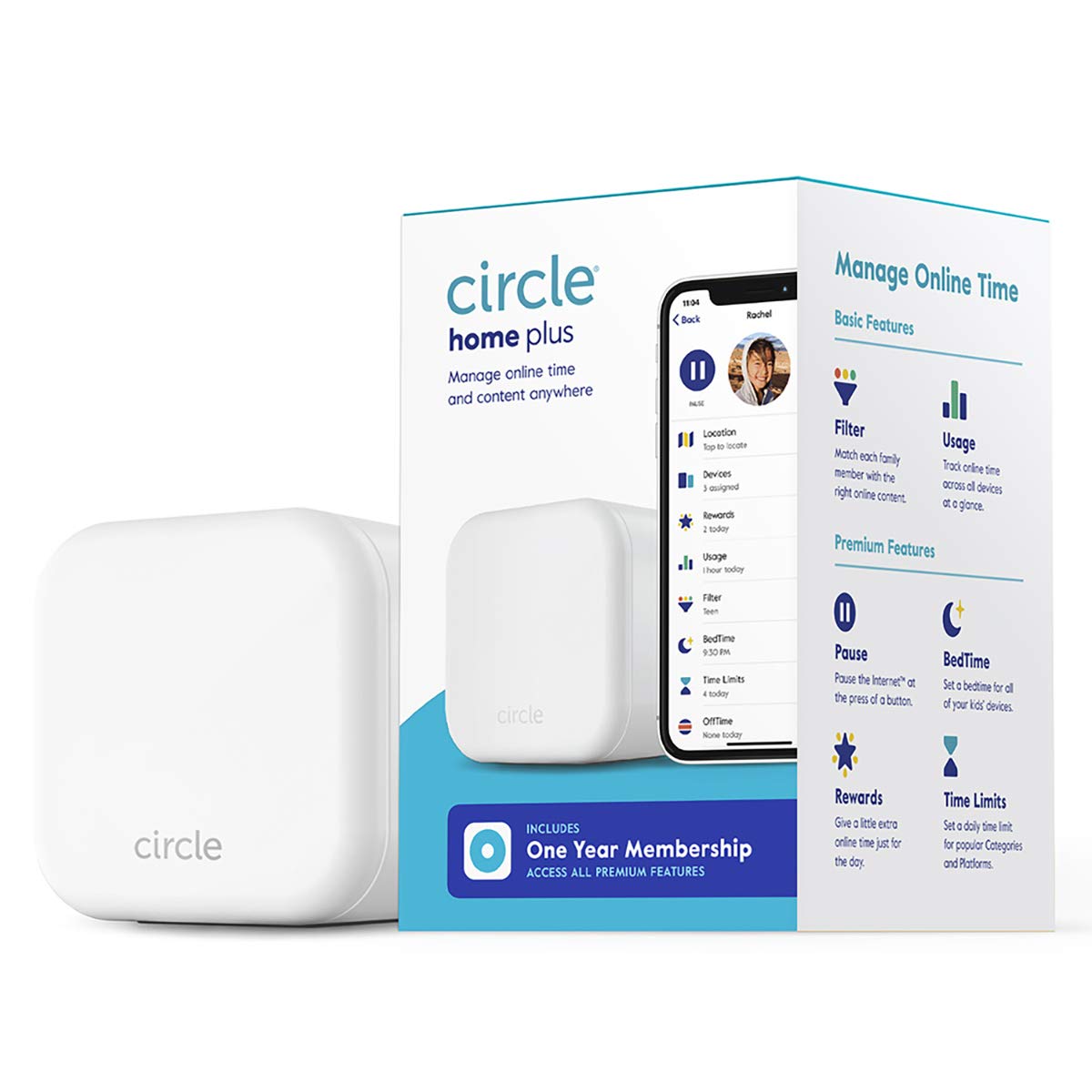
Circle Home Plus is a device, not an app, but it comes with an app that you can use to keep tabs on every device that’s connected to your home Wi-Fi network. Plus, now you can also get updates when your child uses their data plan away from home. The Circle device retails for around $130, and you get a free year of premium features, which goes up to $9.99 per year after.
Formerly known as Disney Circle, this device blankets your home network with protection—and it now protects every device that uses your home Wi-Fi, plus mobile devices when you download the Circle app. Its features are limited compared with actual parental control apps, but you can still filter content, manage screen time, and pause or block internet access.
We think the combination of Circle watching over your home network and one of the other parental control filters on our list is the safest way to go. When kids are little and first start to play on a phone or tablet, Circle provides solid general protection. As they get older and start browsing on their own and using social networks, add another layer of protection with an app.
Things to Consider When Choosing a Parental Control Filter
You want to keep your children safe, whether it’s on the playground or in cyberspace. In both environments, you’ll do a better job of protecting your kids with some backup. When it comes to the internet, the best backup you can have is a parental control app or web filtering software. These tools help set safe boundaries that let your children explore the online world with limited risk.
In addition to identifying the best parental control tools on the market, we’ve also put together a quick-reference guide to help you identify the parental control features that will best protect your family.
Things You Want a Parental Control App to Help You With
- Content filtering
- Safe browsing
- Limiting screen time
- Blocking unsavory apps and other downloads
- Safe text and instant messaging
- Social media monitoring and management
Things You Want a Parental Control App to Show You
- Online activity reports
- Search history
- Access requests
- Time-extension requests
- Bad language alerts
- Content filtering updates
Watch Out for These Parental Control Workarounds
Kids are smart—and when it comes to mastering the digital world, they’re pros. Depending on the age of your children (and their determination to see the latest viral online sensation), the day may come when they try to outsmart the parental controls you’ve put in place. In fact, we found multiple negative reviews of every product we’ve featured posted by kids whose efforts to bypass the filters failed.
We don’t think you can get a better endorsement than a disgruntled child who couldn’t access something inappropriate, but in case your little geniuses start thinking outside the box, we want you to watch out for these workarounds that your kid might try:
- Using a different network (public, cellular data)
- Using a VPN (virtual private network that hides their activity)
- Using a friend’s device
- Using private browsing
- Using browsers hidden inside other apps
- Doing a hard reset of their device
Conclusion
Today we have to protect kids on the playground and online. Threats like cyberbullying, online predators, and other cybercrimes that target youngsters are constantly evolving. Your first line of defense should be open communication, but a parental control app is on the job 24/7 to help you stay ahead of the next cyberthreat. When it comes to choosing the right parental control app, it’s important to identify your family’s specific needs.
- For homes with young children: The Circle Home Plus is a great place to start with little ones just learning the digital landscape. From pre-K to pre-teen, the addition of a tool like Net Nanny helps you see what your child is doing online and lets you manage screen time to instill good habits early.
- For families with teens: Keeping tabs on social media activity is crucial for spotting early signs of depression, cyberbullying, or other risky behavior. The Bark app watches the most apps and social networks—and it looks specifically for triggers that indicate things like suicidal thoughts or potential grooming by online predators.
For more information about protecting your child online, check out our Internet Safety Guide for Kids.
How We Tested the Best Parental Control Apps
To find the best parental control apps we sat down and spent time setting up different apps, testing them as both “children” and “parents,” and then comparing what we liked and what we thought could be better. On top of our hands-on testing, we conducted intensive research—digging into each app’s features, prices, compatibility, and customer reviews. We also looked at what other experts had to say about each parental control app we considered.
Three members of our team tried out the different apps, looking for how well each performed in these specific areas:
- Setup and installation: How easy it was to install on different devices (including iOS, Android, mobile, and desktop), how much time it took, and whether or not there were any issues that came up.
- Performance: Did the app do what it was supposed to do? Would it be easy for kids to work around it?
- Features: What extra features were available, and did they deliver as promised?
The post The Best Parental Control Apps of 2019 appeared first on SafeWise.
Article source here: The Best Parental Control Apps of 2019
via Calvin Wise Tips https://lockwisetips.tumblr.com/post/189154472637

Want to create own pages and collaborate?